


1
WEAR YOUR FRAME TO BEGIN
The temples will automatically power-on and enter pairing mode approximately 2 seconds after activation.
2
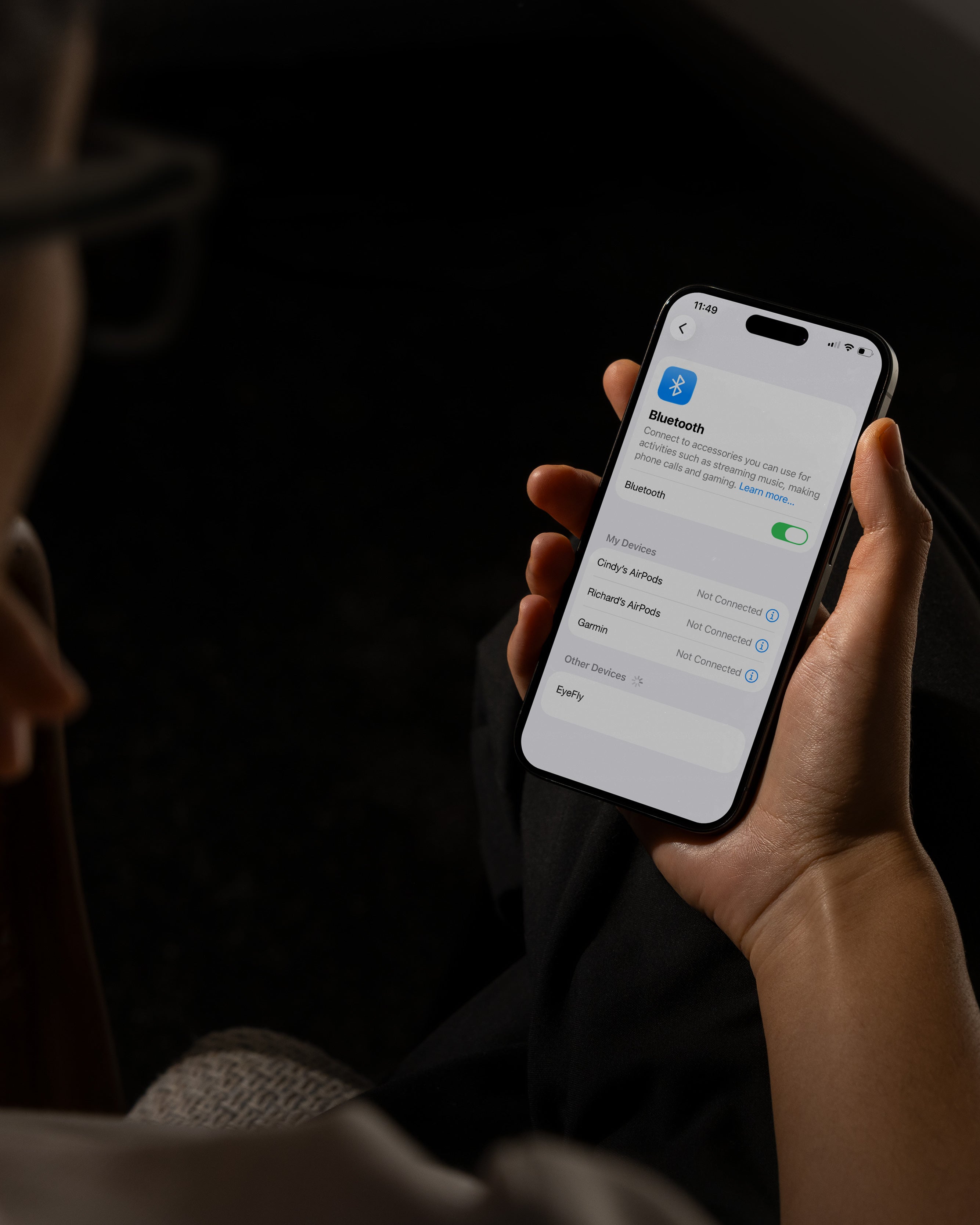
ENABLE BLUETOOTH ON YOUR DEVICE
Find "EyeFly" and tap to connect.

3
YOU ARE CONNECTED
Explore the features and capabilities of your frame by scrolling down this page. You’ll find everything you need to get the most out of your EyeFly experience.
Touch Controls
Learn the touch gestures that keep you connected; everything you need is just a tap away.
ANSWER/END CALL
Tap either touch key once.
REJECT CALL
Press and hold either touch key for 1.5 seconds.
PLAY/PAUSE MUSIC
Tap either touch key once.
PREVIOUS/NEXT TRACK
Double-tap left touch key for previous, right touch key for next track.
VOICE ASSISTANT
Press and hold either touch key for 2 seconds.
REMOTE PHOTOGRAPHY
Open the camera on your device. For iOS double-tap either touch key, for Android single-tap either touch key to take a photo.
POWER OFF
Remove the frame from your face, and it will automatically power off after approximately 15 seconds.
To manually power off the frame, press and hold either touch key for 8 seconds.

BATTERY STATUS
The current battery status will be displayed directly in your phone’s interface.
On Apple device: open the Control Center (by swiping down) and tap the transmission icon within the Music menu. On Android device: open the Bluetooth settings and view the EyeFly device in the list to see the battery level displayed directly.
CHARGING LIGHTS
The orange light stays on while charging, and the green light stays on for 1 minute after fully charged, then turns off.
Note: The glasses will automatically shut down while charging.
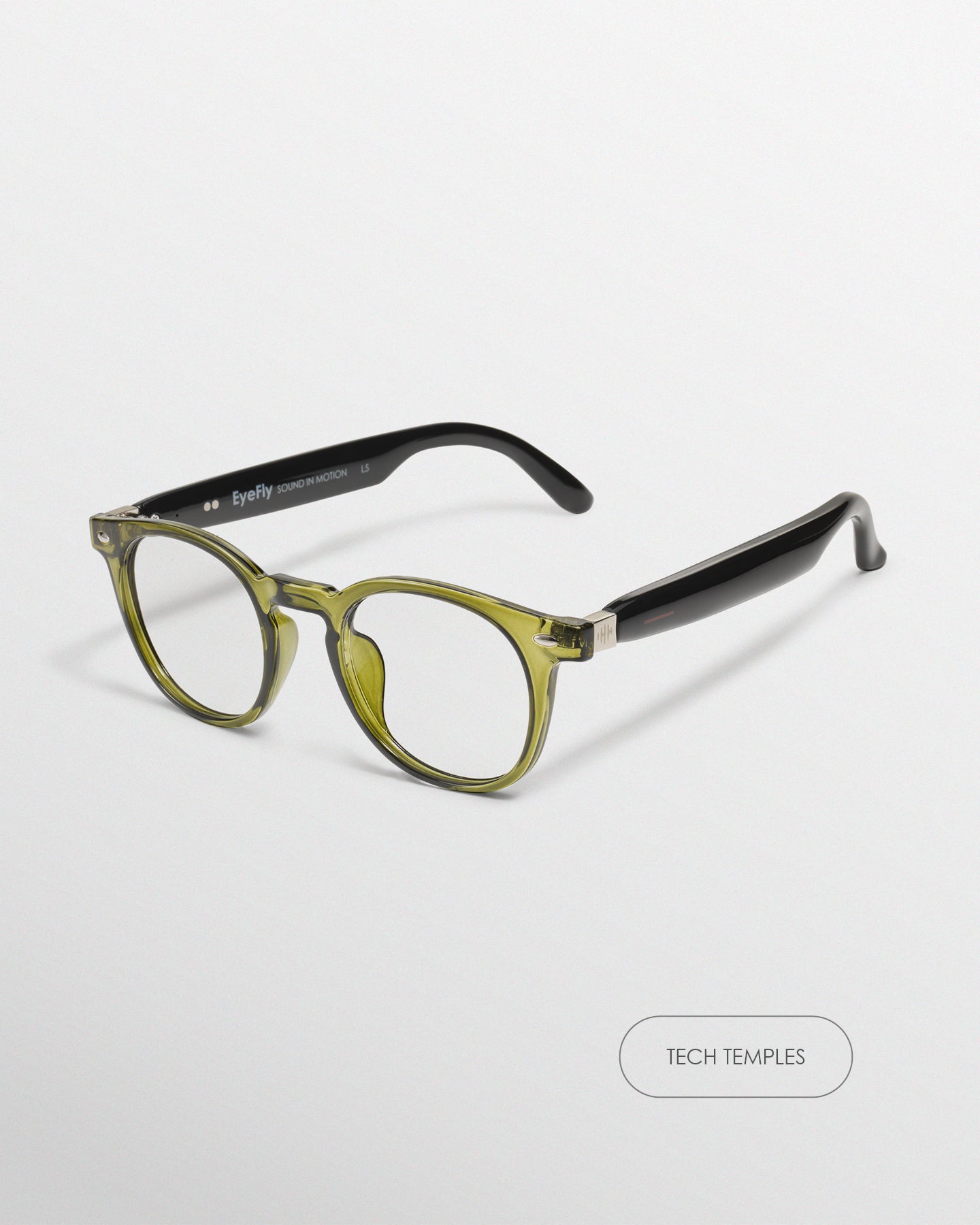
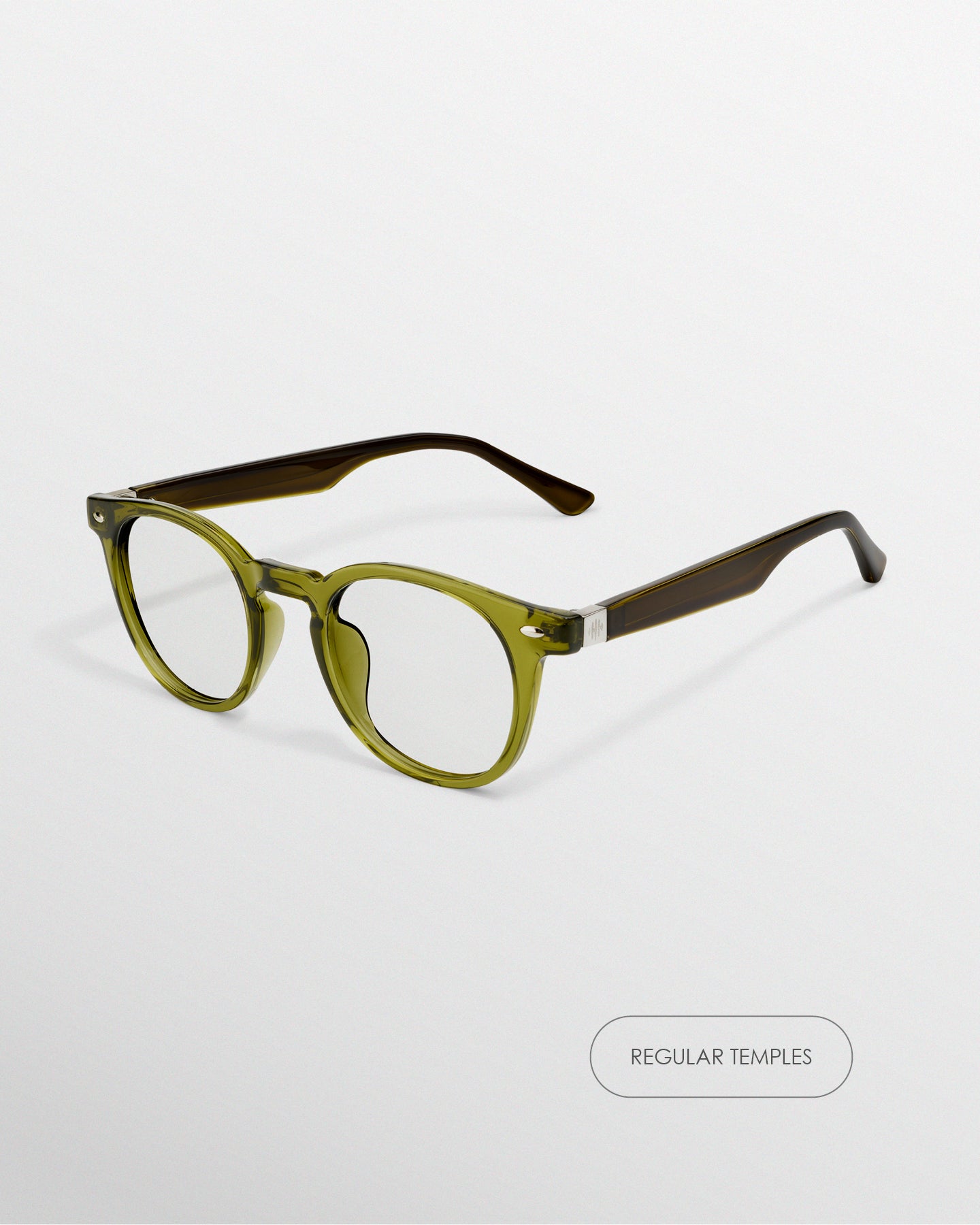
Switching Temples
Switching between tech and regular temples only takes a few seconds. Simply pull each temple out of the metal holder at the corner of the frame, then push the new temple into place.
That's it. Whether you want to stay connected or keep things classic, EyeFly makes it easy to switch whenever you like.